
Event playbook
Run a Neegma event people talk about.
A step-by-step guide to hosting Neegma at your next activation, in the room or on a call. Set up in minutes, share one QR code, and let the leaderboard do the rest.
Watch the playbook
Every step in two minutes.
Step 1 of 9
Create your event
An event is one link for everything your guests do on the day: game sessions, plus a Live Q&A, a raffle, Bingo, Speed Networking or a Challenge if you want them. There are two ways in, and both take you to the same short setup form.
From the homepage
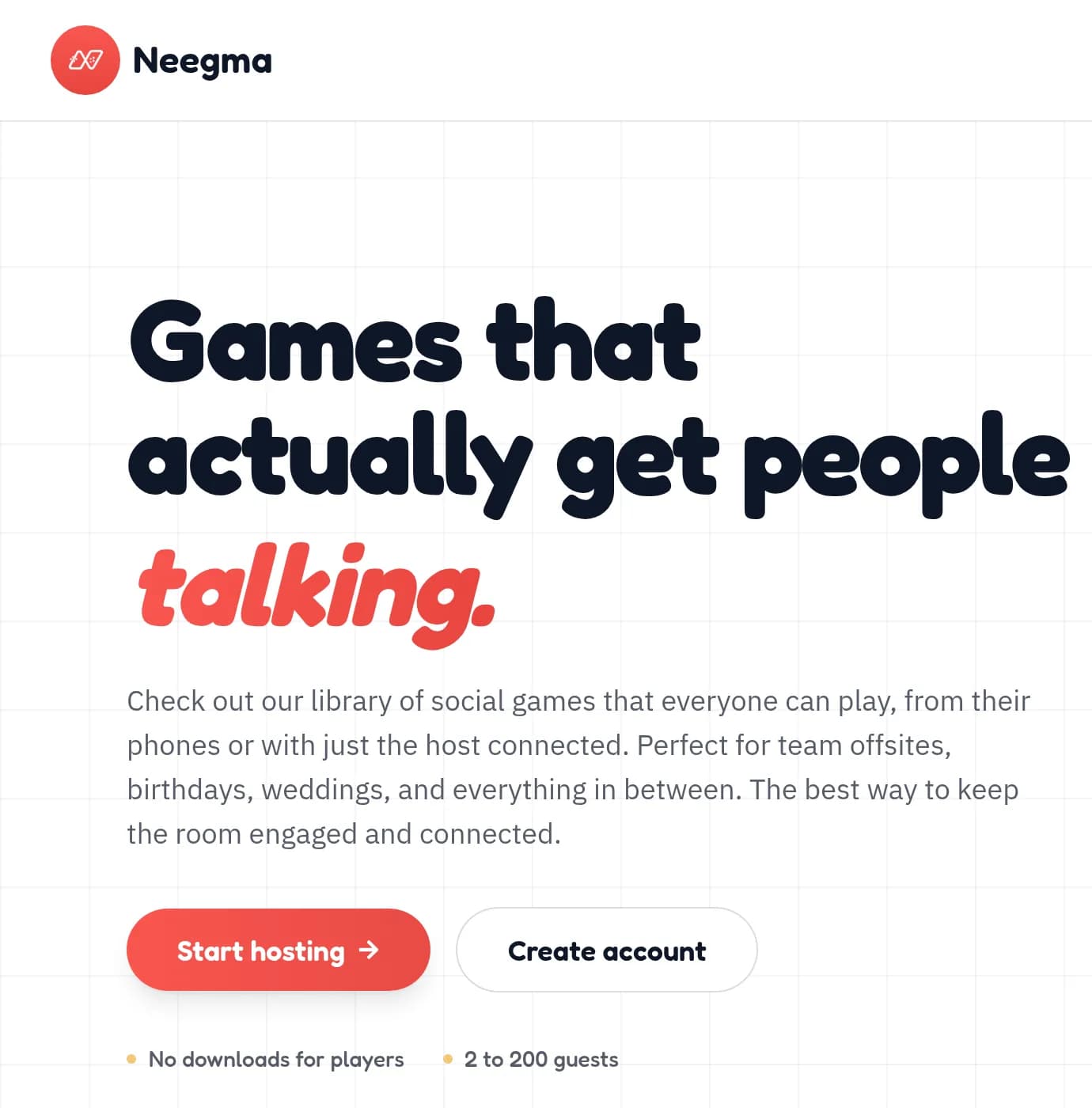
Click Start hosting in the hero. Not signed in yet? You can still start here: enter your email at the end and we send you a link to your host screen.
From your dashboard
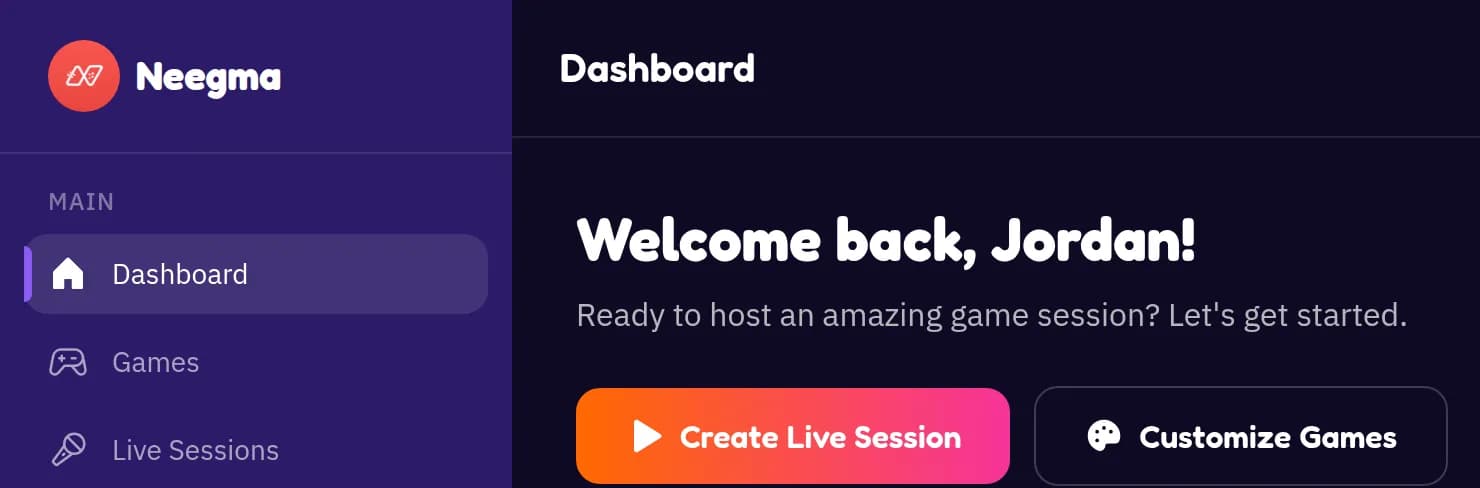
Already signed in? Select Start hosting on your Dashboard or Events page.
Step 2 of 9
Name your event
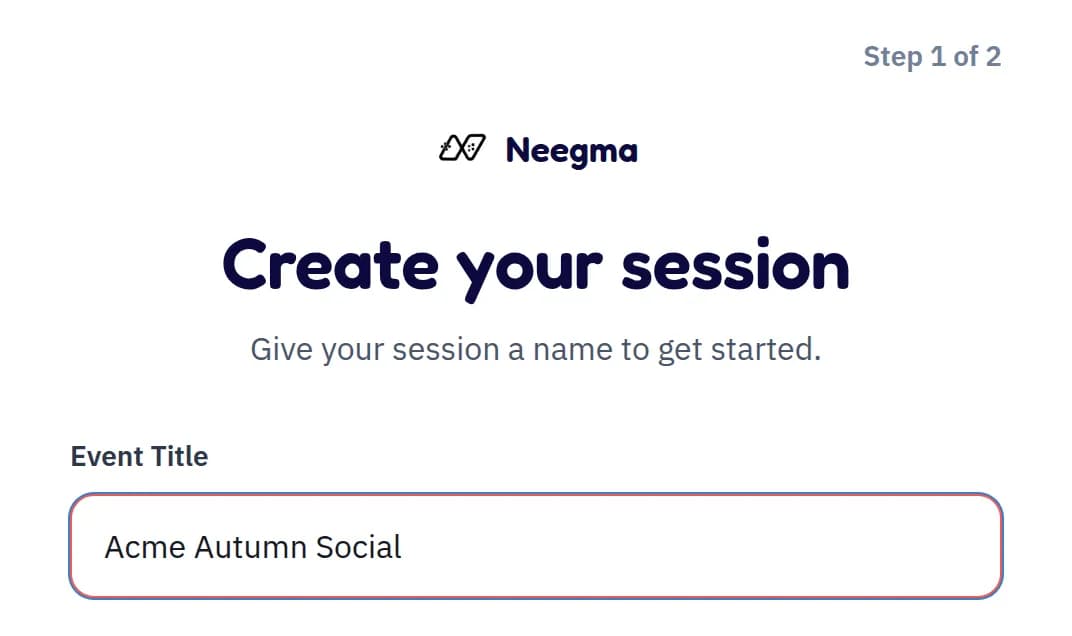
Use a name your guests will recognise, like “Acme Summer Social”, “Friday Team Quiz” or “Sarah's 30th”.
The name shows on your host screen and on your printable poster, so it doubles as the headline for your event. Keep it short enough to read from the back of the room.
Step 3 of 9
Choose how people play
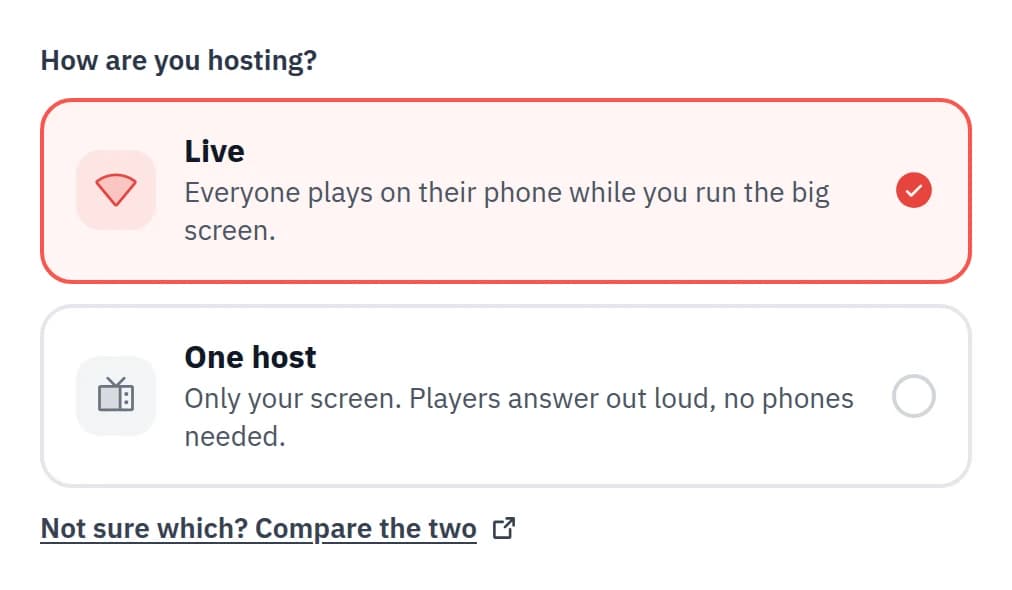
Pick what your guests will do. For games, choose how they take part: everyone on their own phone, or the whole room around one screen. You can choose differently for every event.
Live
Host and players connected
Players join on their own phones by QR code or link, answer from their seats and follow a live scoreboard.
Best for: Virtual events, conferences and big rooms.
One host
Host only
You run everything from one screen and nobody needs a phone. Players answer out loud and you keep score.
Best for: Parties, workshops, pub quizzes and venues with poor signal.
Step 4 of 9
Start now or schedule it
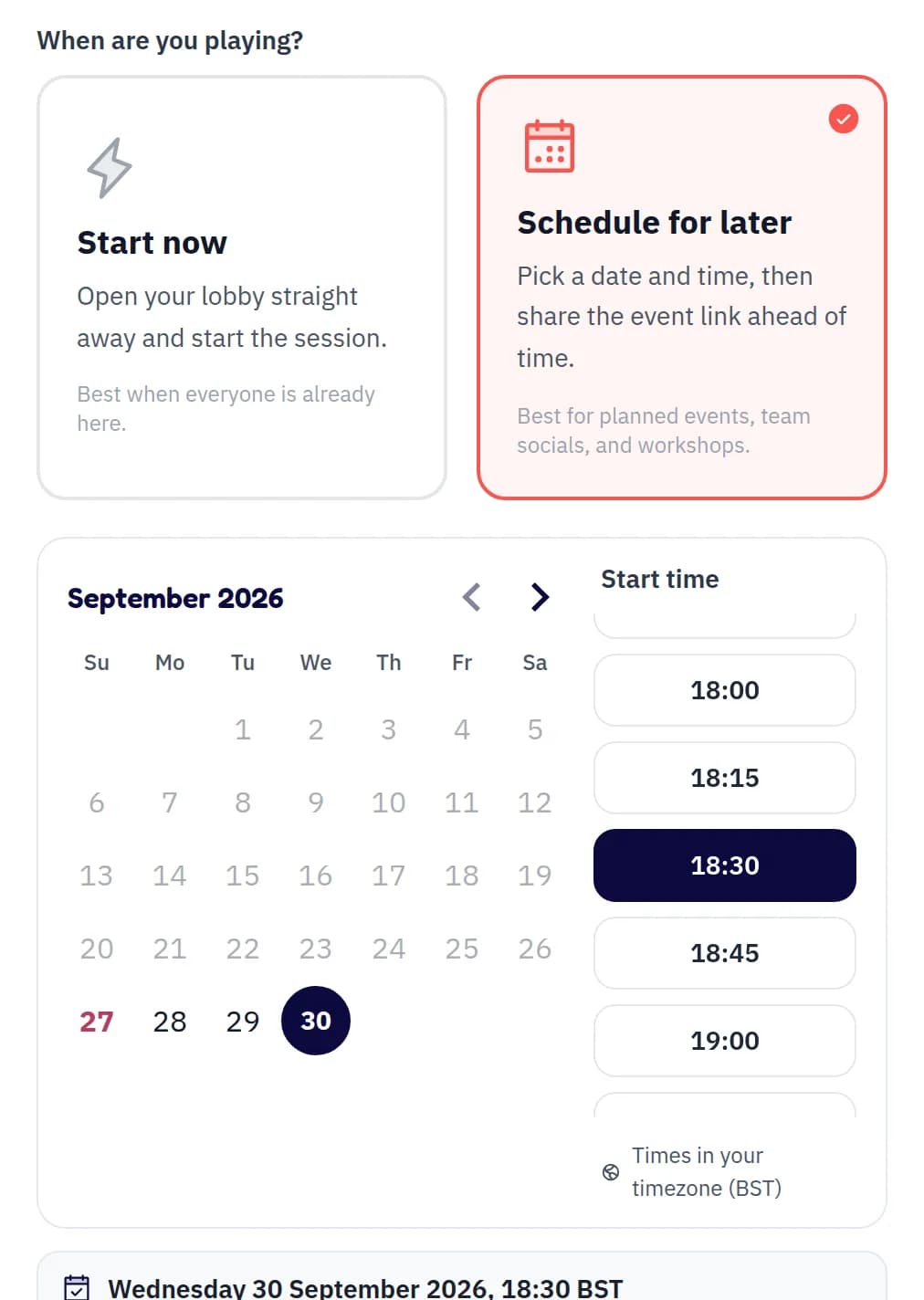
Next, choose when you are playing.
Start now. Drops you straight into your lobby, ready to play.
Schedule for later. Pick a date and a start time in your own timezone. Scheduled events always need an email, so you can find them again later.
Keep track on your dashboard
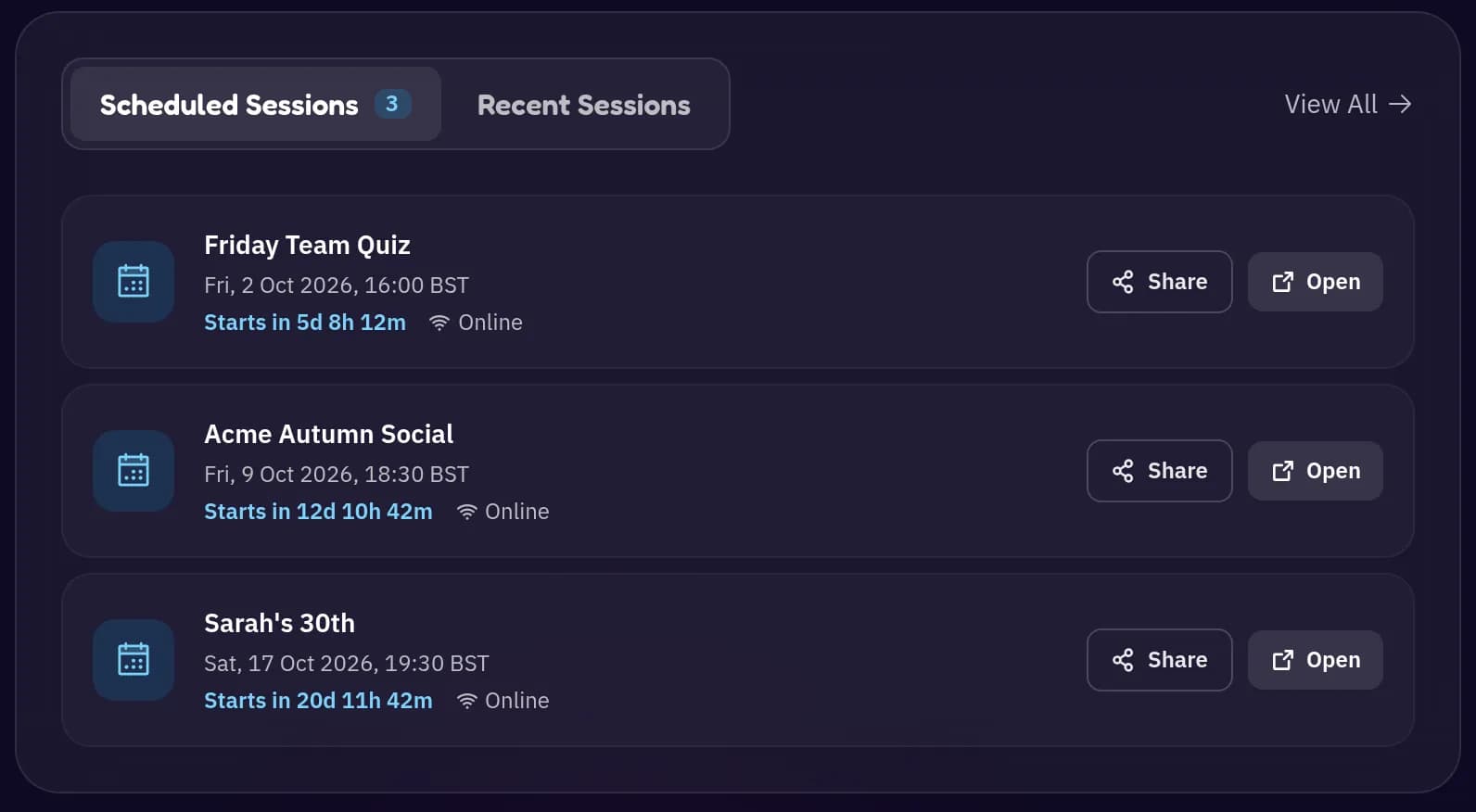
Scheduled events wait under Upcoming on your dashboard, soonest first, each with a live countdown and quick Share and Open buttons.
Opening early is fine. You can start a scheduled event at any time: open it and press Start now. Guests who scan early see a countdown and can join from 30 minutes before the start, or as soon as you press Start now.
Step 5 of 9
Share your event
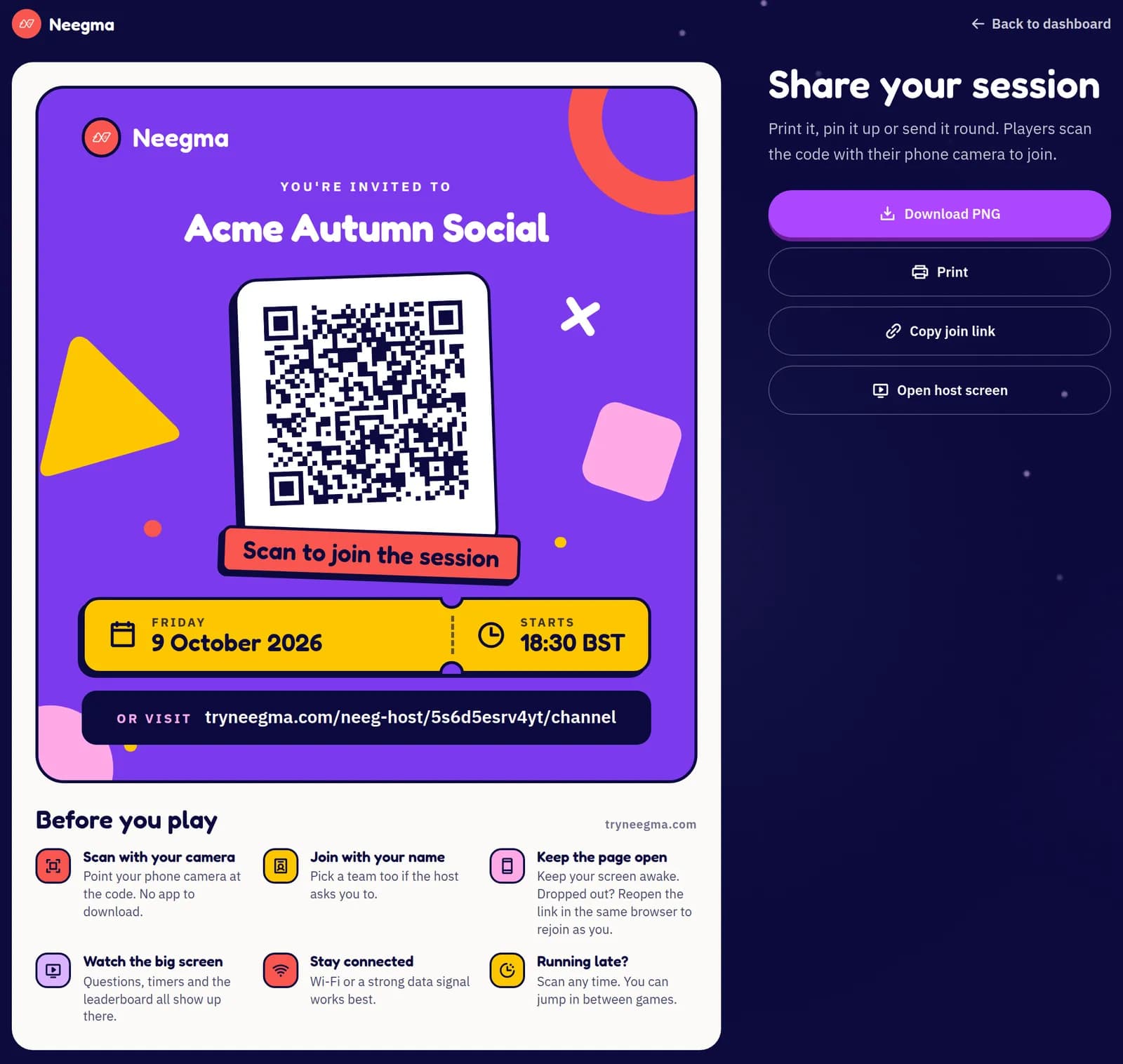
Every event, scheduled or already started, has its own share page: a bold QR poster with your event name, date and time.
Download it for your invite, email or socials, or print it for tables, the entrance and the stage. Underneath the QR code, a short Before you play list tells guests how to scan, join with their name, stay connected and catch up if they arrive late.
After you schedule. You land on the share page straight away.
From your dashboard. Use the Share button next to any scheduled session.
From your host screen. Open Share in the top bar and choose Printable poster.
Hosting a one-host session? The poster has no QR code, because only your screen needs to be connected.
Step 6 of 9
Pick teams and set up your games
Before the first game, decide how people compete and tune each game to your crowd.
Team or individual play
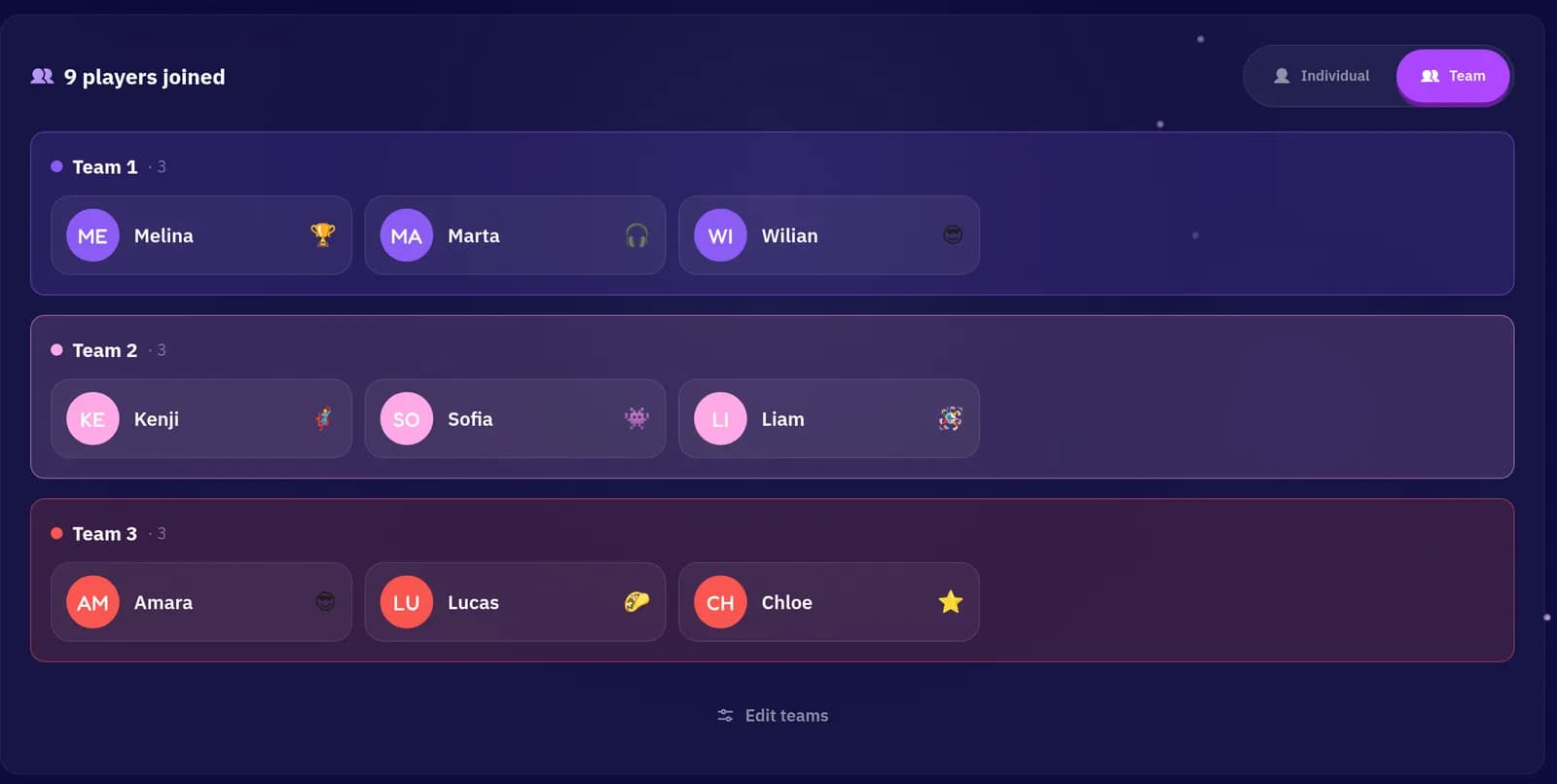
In your lobby, switch between Individual, where everyone plays for themselves, and Team, where the room splits into groups. Players can pick their own team as they join, and you can move people between teams at any time with Edit Teams.
Set up each game before it starts
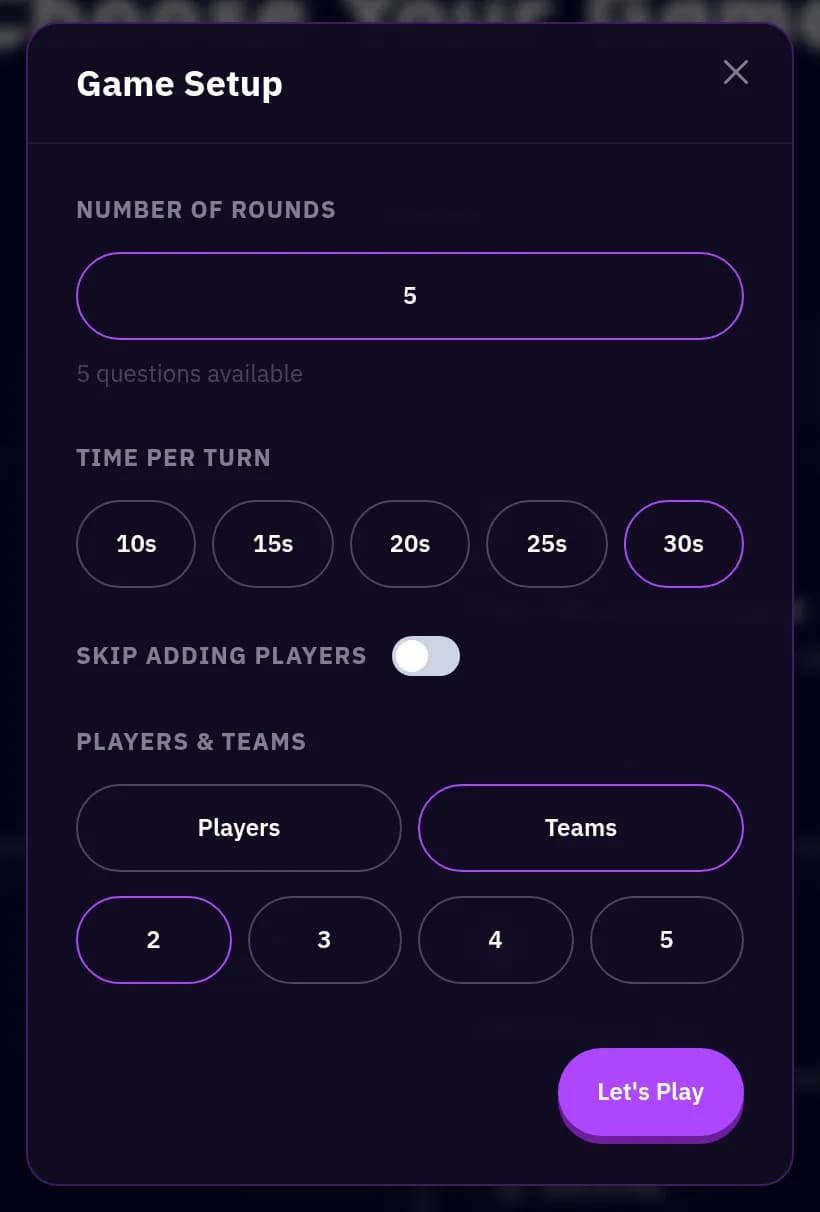
When you pick a game, a Game Setup window opens first. Choose the number of rounds, the time per turn and any options that game has, then press Let's Play. Try it in your test session so you know what suits your crowd.
Step 7 of 9
Add more to your event
Games are the heart of it. These run on the same event link, so guests scan once and find everything on your event's page.
Experiences for the rest of the day
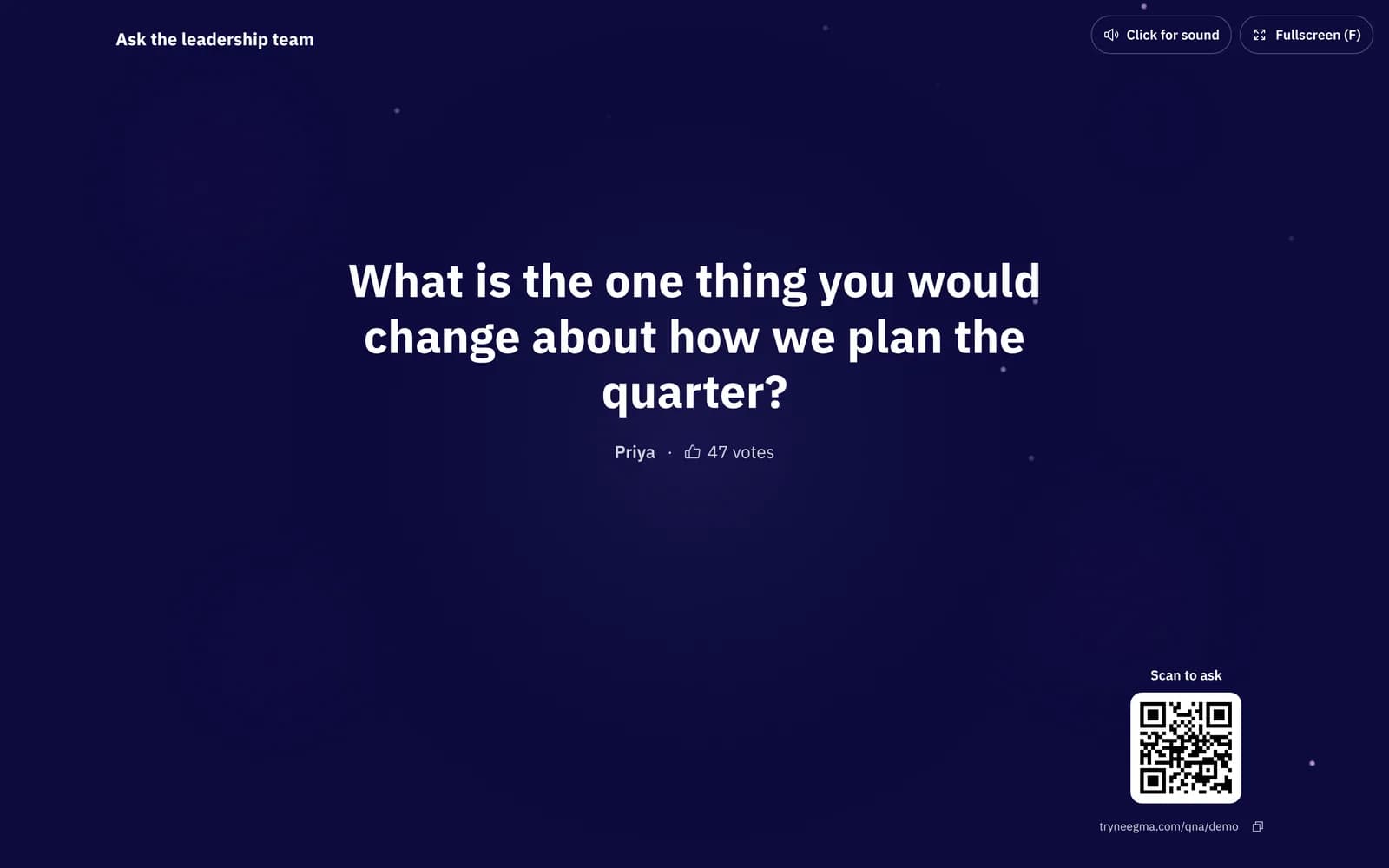
Live Q&A. Guests ask and upvote questions from their phones while you moderate, and the big screen shows what's next.
Raffle. Draw prizes live on the big screen, or let everyone spin to win on their phone.
Bingo. Guests collect numbers from each other around the room, then race to get them called.
Speed Networking. Pair everyone for short chats with question cards, and send them home with a list of who they met.
Challenge. A quiz people play in their own time while it's open, on one leaderboard.
They come with every paid plan, on a Personal or Business account. A Personal event holds one experience; a Business account puts several in one event, and switching is free in Settings.
Record every quiz answer
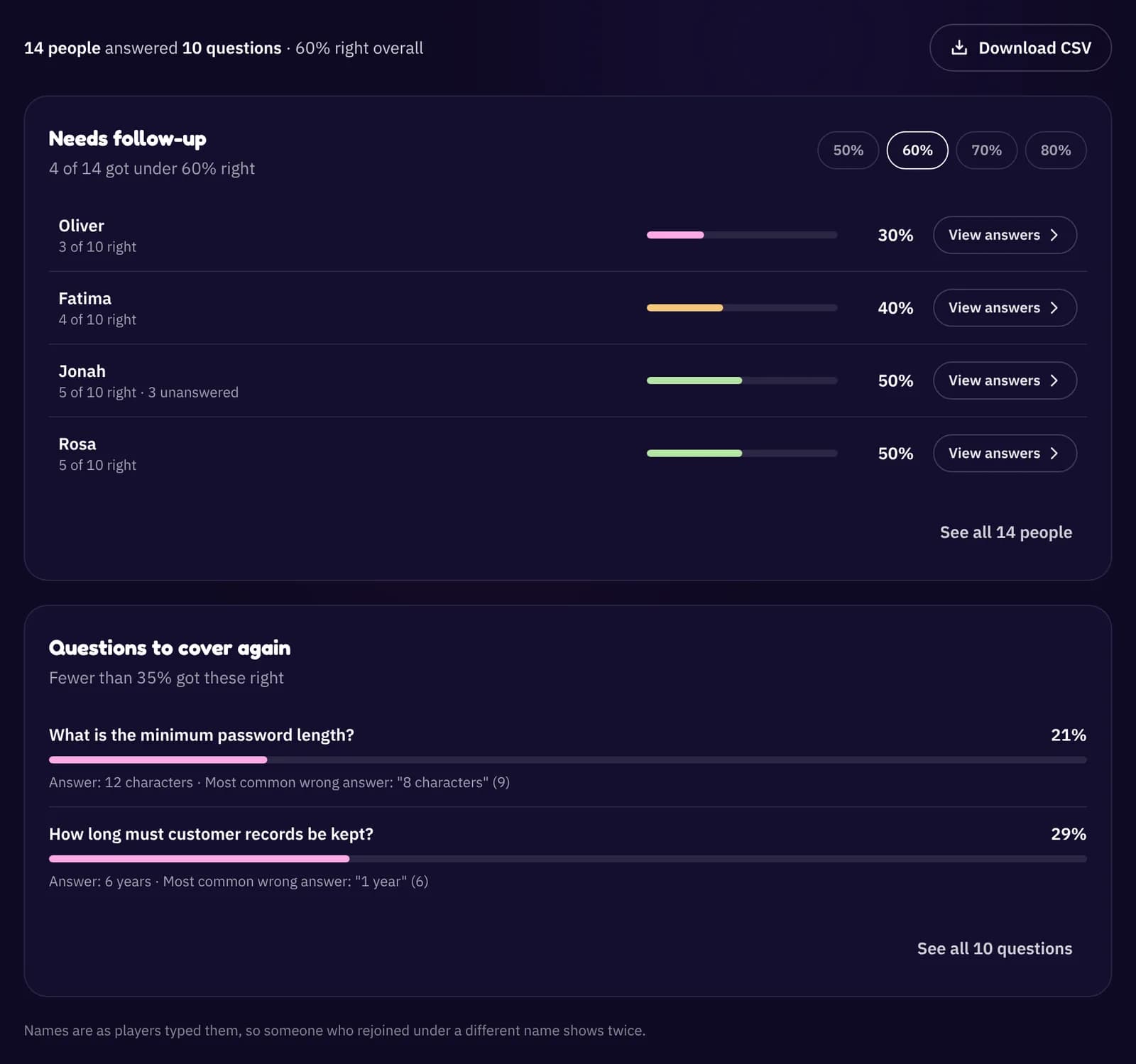
Turn on Record answers in your event's settings and Answer Breakdown saves every quiz round player by player. Afterwards, see who scored under your cut-off and which questions the room got wrong, then download it all as a CSV.
Answer Breakdown. Best for training, onboarding and classroom quizzes where you need to follow up.
Step 8 of 9
How to have a great Neegma event
The setup is done. These are the habits of hosts whose events people are still talking about the next week.
In person, group people into teams
Teams keep everyone involved, shy guests included. Put the host screen on the biggest display you have and print a poster for every table.
Virtual? Share your screen with sound
Drop the join link in the call chat and ask players to keep Neegma open on their phone or in a second window.
Switch the game types
Alternate a fast word game, a social deduction game and a creative round to keep the energy up all event long.
Test games beforehand
Create a quick Start now session to try each game on your own screen. Practice rounds never touch your real event's leaderboard.
Tell people how to stay connected
Say it once at the start and the whole room plays smoothly.
Live. Keep your screen awake, stay on Wi-Fi and keep the Neegma tab open.
One host. Explain the rules up front, keep teams small and read answers out loud so everyone can follow.
Run it from your phone
Press Host controls in your host screen's top bar and open that tab on your phone. You get every button, plus what the room must not see, like the answer or who the Mole is, so you can walk the room while the big screen runs the game.
Players can rejoin
If someone drops out, they reopen the link in the same browser they joined from and come straight back as themselves.
Customise games for your group
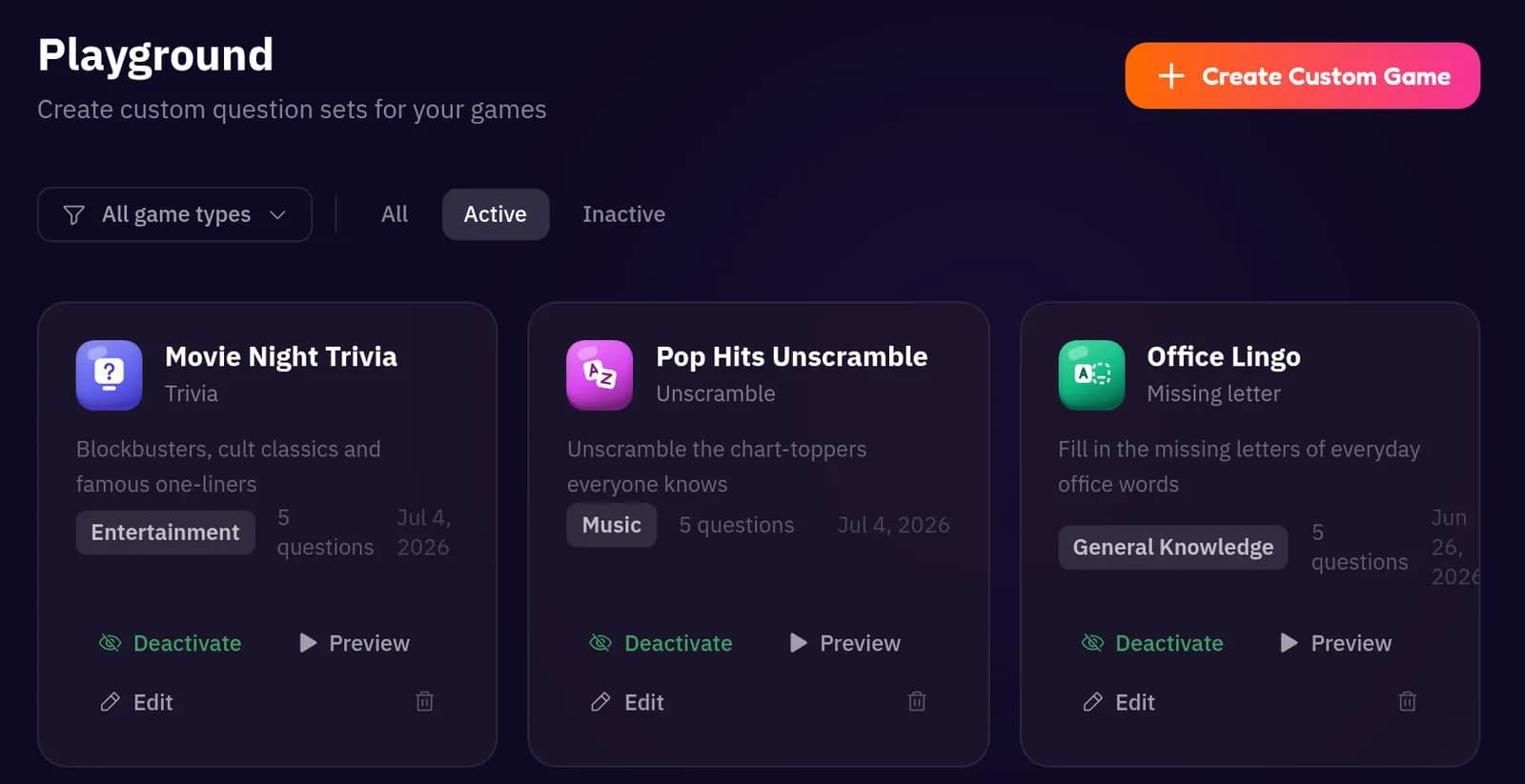
In the Playground, build your own question sets for any game: inside jokes, brand trivia, facts about the team or the couple. Short on time? Create with AI drafts a set for you in seconds.
A leaderboard after every game
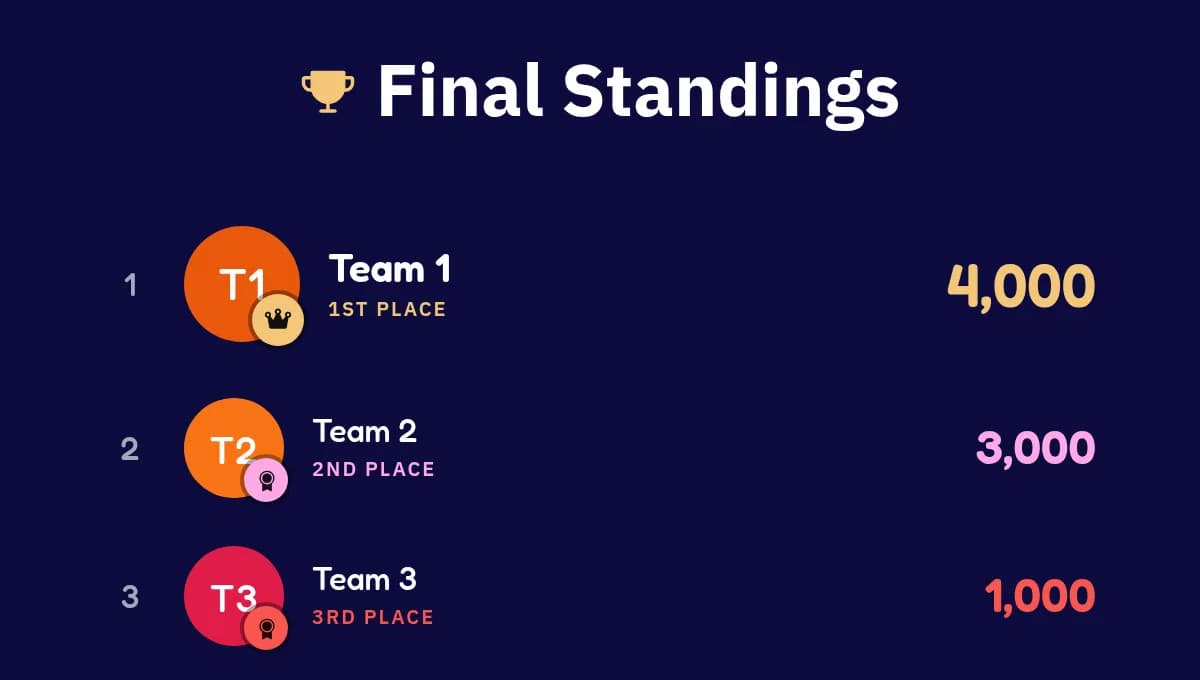
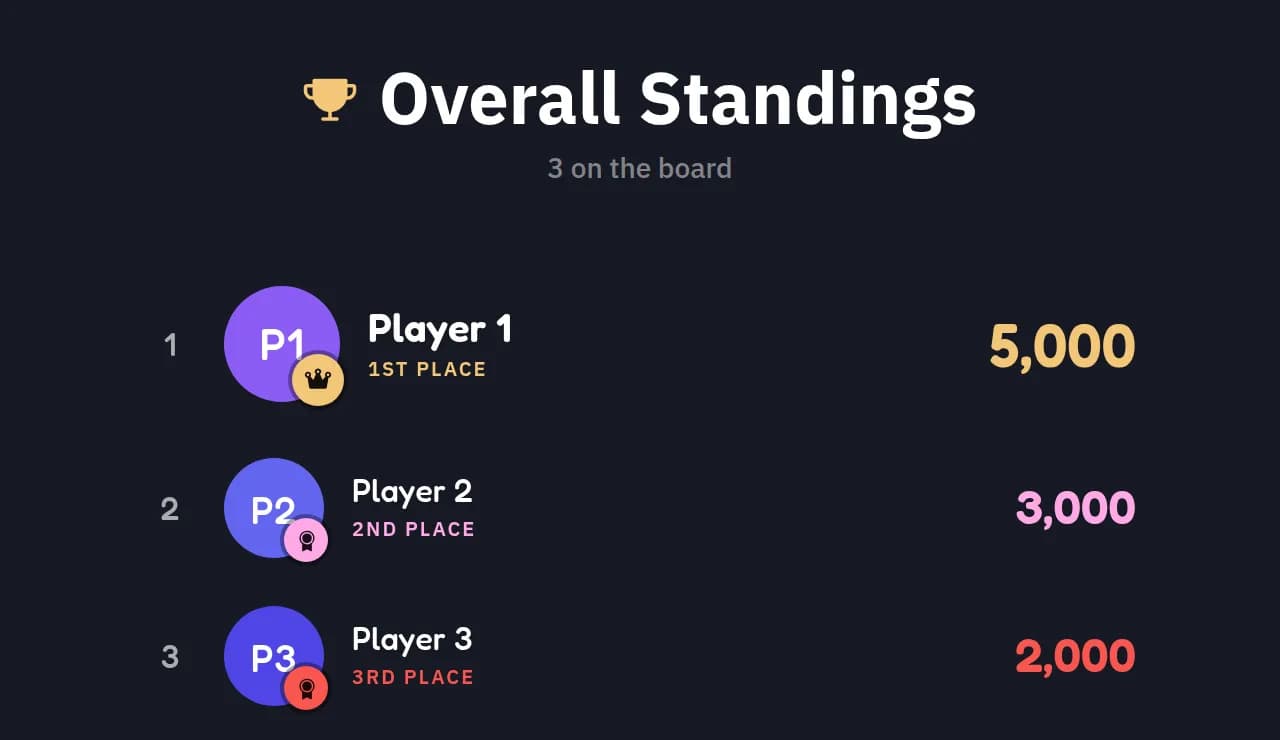
Each game ends with its own standings, and the Leaderboard button on the game select page shows the overall standings across your whole event. Read them out between games to build a rivalry.
Anyone can join at any point
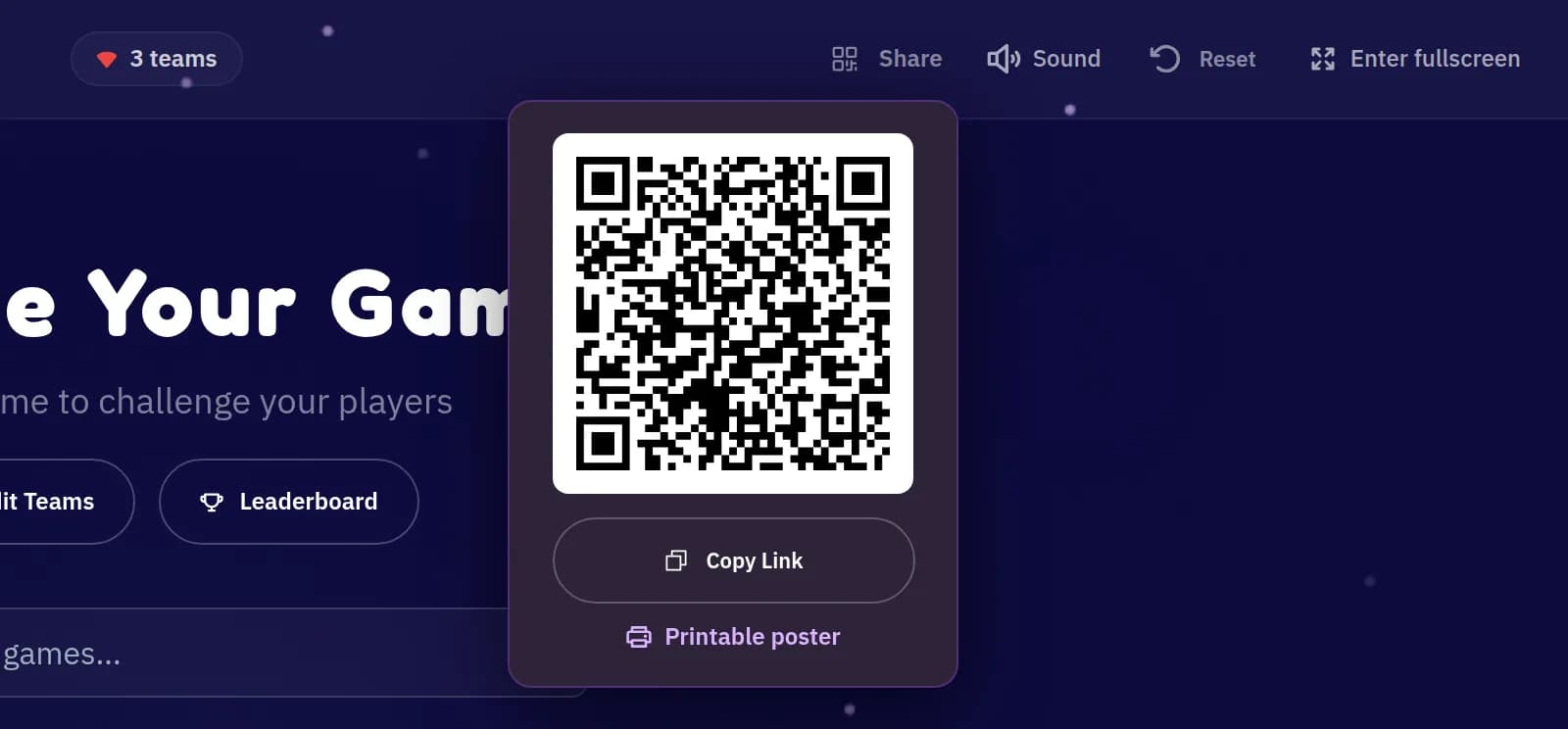
Latecomers are welcome. Press Share in the top bar of your host screen to show the QR code and join link, or open the printable poster.
Step 9 of 9
See how your event went
Once the last game ends, your event's numbers are waiting in the dashboard.
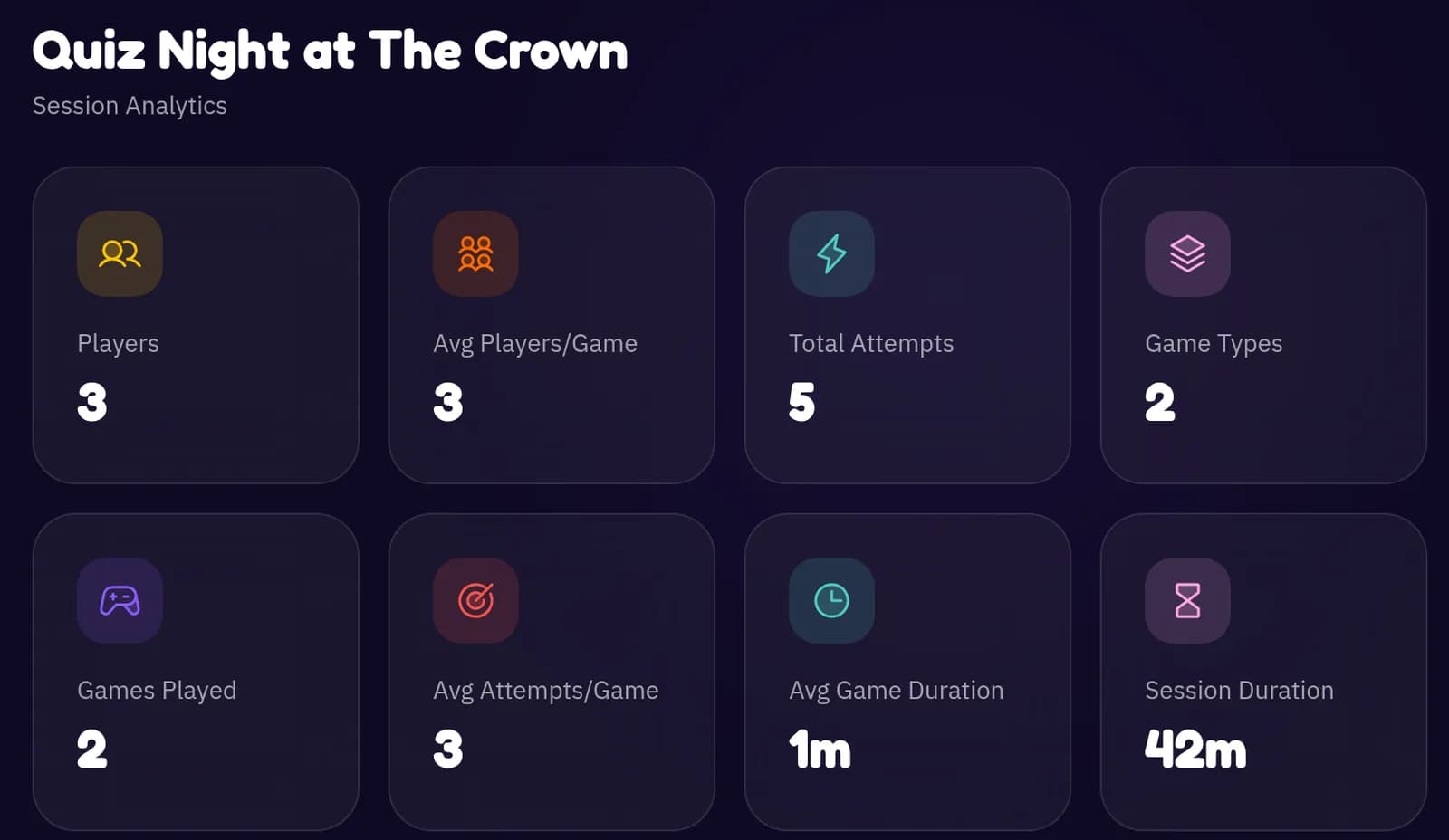
Open Analytics from your dashboard, or View Analytics next to any recent session, to see how many people played, which games ran, how many attempts there were and how long each game lasted.
Plan the next one. Games with the most attempts are the ones your crowd enjoyed, so lead with them next time.
Share the results. Pair the numbers with the podium and results cards when you post about the event.
See every answer. With Record answers on, Answer Breakdown shows who needs a follow-up and which questions to cover again.
Event-day checklist
Everything in one place.
Screenshot it, print it, or keep this page open on the day.
Before
A week out
- Create and schedule your event
- Customise games in the Playground
- Add a Live Q&A, raffle, Bingo or Speed Networking if you want them
- Add the poster to your invite
The day before
- Test your games in an instant session
- Print posters for tables, the entrance and the stage
- Decide on teams or solo play
30 minutes before
- Open the host screen on your biggest display
- Check sound and Wi-Fi
- Open Host controls on your phone
- Put the QR code up so early arrivals can join
During
- Explain the rules before each game
- Mix up the game types
- Read out the leaderboard between games
- Keep Share handy for latecomers
After
- Announce the winners on the podium
- Download and share the results
- Check your event analytics on the dashboard
- Export your Q&A, raffle winners or Answer Breakdown